
Computerise
Desktop computer use for any Paseo agent, asking before each input action unless you change an agent's mode.

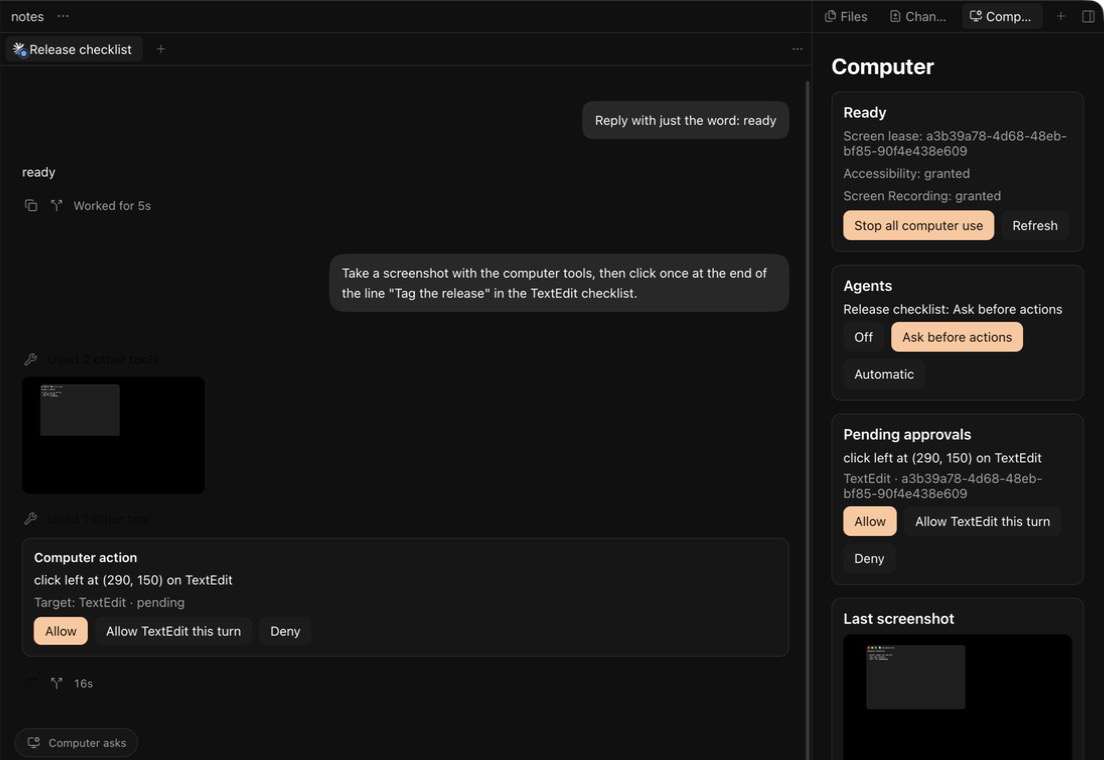
Computerise lets Paseo agents see and control the main display of the Mac running the Paseo daemon. It works across agent providers through thirteen MCP tools for screenshots, accessibility snapshots, pointer position, clicking, moving, dragging, scrolling, typing, key presses, zooming, opening apps, short waits, and a status report. A click, move, or scroll can name a control by its number from the last accessibility snapshot; the action is refused if that control changed since, including a row, cell, or text whose content changed (a text field may change as you type into it). Every input action reports what changed in the front window's controls, or that nothing visible to the accessibility tree changed, and can also return a screenshot taken just after it.
New agents start in Ask before actions: they can take screenshots and accessibility snapshots without asking, and each input action waits for you to approve it in the agent chat. Choose Automatic to let that agent act without individual approvals, or Off to take its access away. In ask mode, Allow this turn on a click, move, drag, or scroll also allows later pointer actions in that app until the agent's turn ends, the agent closes, its mode changes, or computer use is stopped. Typing, key presses, opening apps, and drags between two apps always ask. A request still waiting when the turn ends, the agent closes, or its mode changes is withdrawn and does nothing. Read-only screenshots and accessibility snapshots never ask while the agent's mode is ask or auto. One agent holds the screen at a time, and Stop computer use immediately cancels pending approvals, releases that lease, and interrupts the macOS step that is running, such as a long piece of typing.
Setup
Computerise requires Paseo 0.13 on macOS. In System Settings → Privacy & Security, grant Screen & System Audio Recording and Accessibility to Paseo. Reopen Paseo after granting screen recording. The Computer panel shows both permissions and can open the matching System Settings pane, ask macOS to show its Accessibility prompt, and check Screen Recording without waiting for an agent's screenshot. No additional software is installed.
New agents receive the computer tools when they are created. Agents created before the plugin was enabled, or before this version, must be recreated to get every tool. New agents start in ask mode. Agents that had the computer tools before v0.5.0, when the default was off, stay off until you choose a mode, and a child created by an agent that is off starts off. Paseo names a child's parent in the agent's labels; an agent whose labels Paseo does not pass to plugins starts off. Use /computer auto, /computer off, /computer ask, or the composer control to change an agent's mode. The Computer panel lists agents without the computer tools as such. If the plugin's saved modes cannot be read, every agent that already has the tools is set to off.
Safety and data
- Screenshots and accessibility snapshots are returned to the agent and are therefore sent to that agent's model provider. Because new agents start in ask mode, they can take them without asking until you set them to Off. The Computer panel also shows the latest screenshot in the connected Paseo app. Each capture is written to a temporary file in the plugin's private folder and deleted as soon as it is read; after that, the latest screenshot is held only in plugin memory, and the panel downloads it only when a new one is taken.
- Every input action reads the front window's accessibility controls just before and just after it and returns what changed to the agent, so that text reaches the model provider without a separate request. An app blocked from view is never read.
- Check Screen Recording in the panel captures one point of the menu bar corner to a temporary file and deletes it; the image is not shown or sent anywhere.
- With Show agents only the front app on, screenshots and zooms contain only the front app's windows at their real positions; everything else, including the menu bar and Dock, is black. If macOS returns none of the app's windows, the capture fails rather than falling back to the full display.
- Computer use weakens an agent provider's filesystem or command sandbox because an agent can operate signed-in desktop applications with your macOS user permissions.
- Ask mode helps prevent mistakes and actions caused by instructions embedded in pages, email, or documents. It is not a security boundary against a hostile agent that can already run arbitrary local commands.
- Paseo itself, terminals, code-running apps, System Settings, and password managers are always blocked. A screenshot or accessibility snapshot is refused when a password manager is frontmost. With the default full-display setting, other visible windows can appear in a screenshot. The settings screen can add bundle IDs; while the settings are invalid, tools that see or touch the screen refuse rather than act without those additions. Paseo cannot be unblocked, so an agent cannot press its own approval button through these tools.
- Approving from a phone is preferable when available because pressing Allow in the desktop app changes the foreground application. Computerise restores and rechecks the intended target before acting.
- Keys go to the app in front, so typing and key presses check that app before the first key and every 20 characters; if another app has come forward, they stop and report how many characters were typed.
- Audit logs contain the time, agent, tool, target application, and outcome. Typing records only the character count, never the text. Logs rotate at 5 MB and keep one previous file.
Limits
Computerise controls only the main display and takes over the real pointer and keyboard. Electron apps such as Slack expose little more than their window frame to the text accessibility snapshot, so text-only models see little of them. It does not provide background window control. It supports macOS only. Some providers may not pass MCP image results to the model; agents can use the text accessibility snapshot instead. Computer controls are injected only when an agent is created, and an existing agent retains the tool server address it received at creation.