
File Actions
Paseo plugin: run your own programs and commands on a file from its tab's Open with… menu, such as opening a Markdown note in Obsidian.

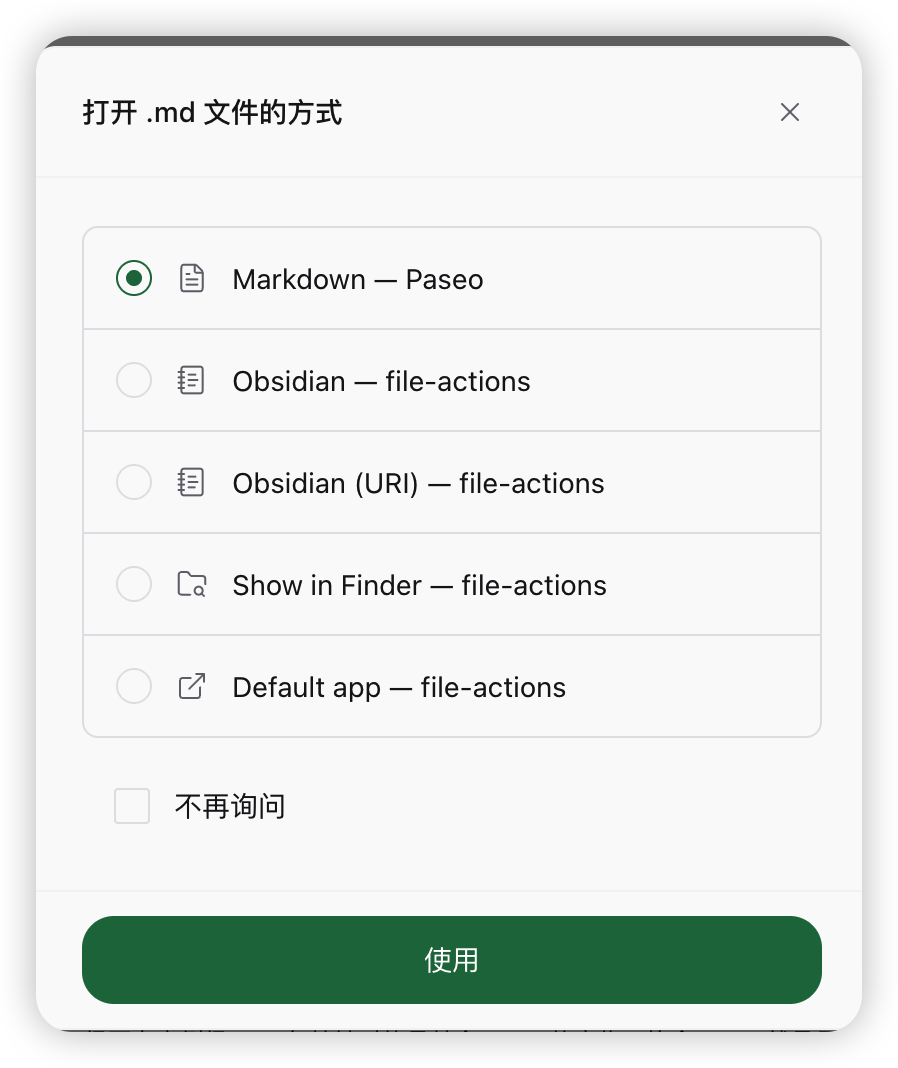
File Actions adds your own actions to the Open with… menu of a file tab. Choose one and the tab shows a preview of the file with a button that runs your action on it, for example opening a Markdown note in Obsidian, showing the file in Finder, or running a terminal command.
Each enabled action is one entry in the menu. Nothing runs until you press the button in the tab. Paseo can remember your choice per file type, so a type opens with the preview and the button every time. Pick Paseo's own viewer in Open with… to go back to the normal preview.
Built-in actions, for macOS:
- Obsidian runs the Obsidian command line, finds the vault that holds the file, and opens it there. Turn on Settings > General > Advanced > Command line interface in Obsidian first.
- Obsidian (URI) opens the file with an
obsidian://link. The folder must already be a vault in Obsidian. - Show in Finder and Default app use the system
opencommand.
The preview covers Markdown, HTML, images, and plain text types. Other types show only the action bar.
Add or change actions in the plugin settings. An action has a name, a program, arguments, the file types it is offered for, and an icon. Arguments accept {path}, {dir}, {name}, {ext}, {vault}, {relPath} and {uriPath}. Each placeholder fills one argument, so paths with spaces or non-Latin characters stay intact. The program starts directly, without a shell.
The program runs on the computer that runs the Paseo daemon, with that user's rights, and only for actions you configured. The plugin reads the path and content of the file in the tab to show the preview. It sends nothing over the network and downloads nothing.