Omni Reader
Read streaming LaTeX, preview workspace documents and spreadsheets, and zoom and pan PDFs in Paseo.


Omni Reader provides read-only workspace previews for Markdown, PDF, Word, Excel and PowerPoint. Open files in the main panel or on the side using Paseo’s Open location settings. The plugin also renders LaTeX in streaming assistant replies. Use Restore original reply to switch back to Paseo’s Markdown.
Use Paseo 0.17.5 or newer on the daemon and client. The plugin supports browser, desktop, iOS and Android clients. If Paseo asks which Markdown viewer to use, choose Omni Reader and remember the choice.
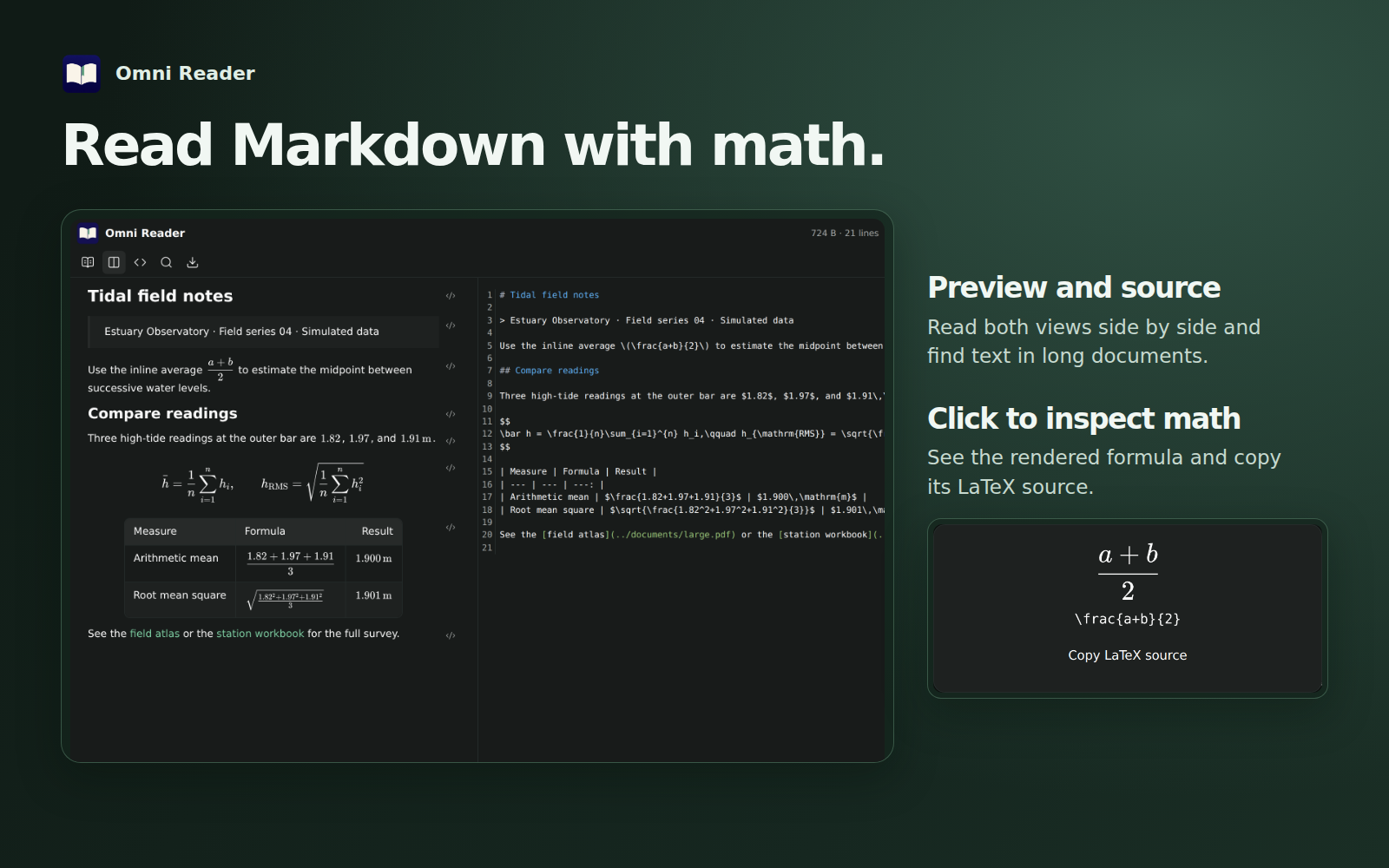
Inline fractions get room for the numerator and denominator. Standalone equations are centered. Chinese text can appear in scripts, fractions, arrow labels, and matrices. Inline and standalone formulas follow Paseo’s chat content font size, with separate size presets from 50% to 200%. Click or tap a formula to see it alongside its LaTeX source and copy the source. The preview includes a Copy LaTeX source button. On desktop, hover for a quick look at the source. Failed formulas keep their source and offer a retry.
Each viewer shows the file size above its controls. Markdown also shows the line count and loads large files as you read. PDFs can be up to 128 MiB. Word and PowerPoint files can be up to 24 MiB for formatted preview. The renderer ships with the plugin and runs on the Paseo host, with no separate Office installation. The first preview of a large document may take several seconds. Some embedded charts may render differently or appear blank.
- Markdown. Read rendered LaTeX alongside numbered source. Wide desktop and tablet panels default to a side-by-side split. On narrow panels, you can stack the panes. Both panes follow each other as you scroll, and a block’s source button highlights its matching lines. Find searches the whole file, including sections you have yet to load, with case-sensitive, whole-word and regular-expression options.
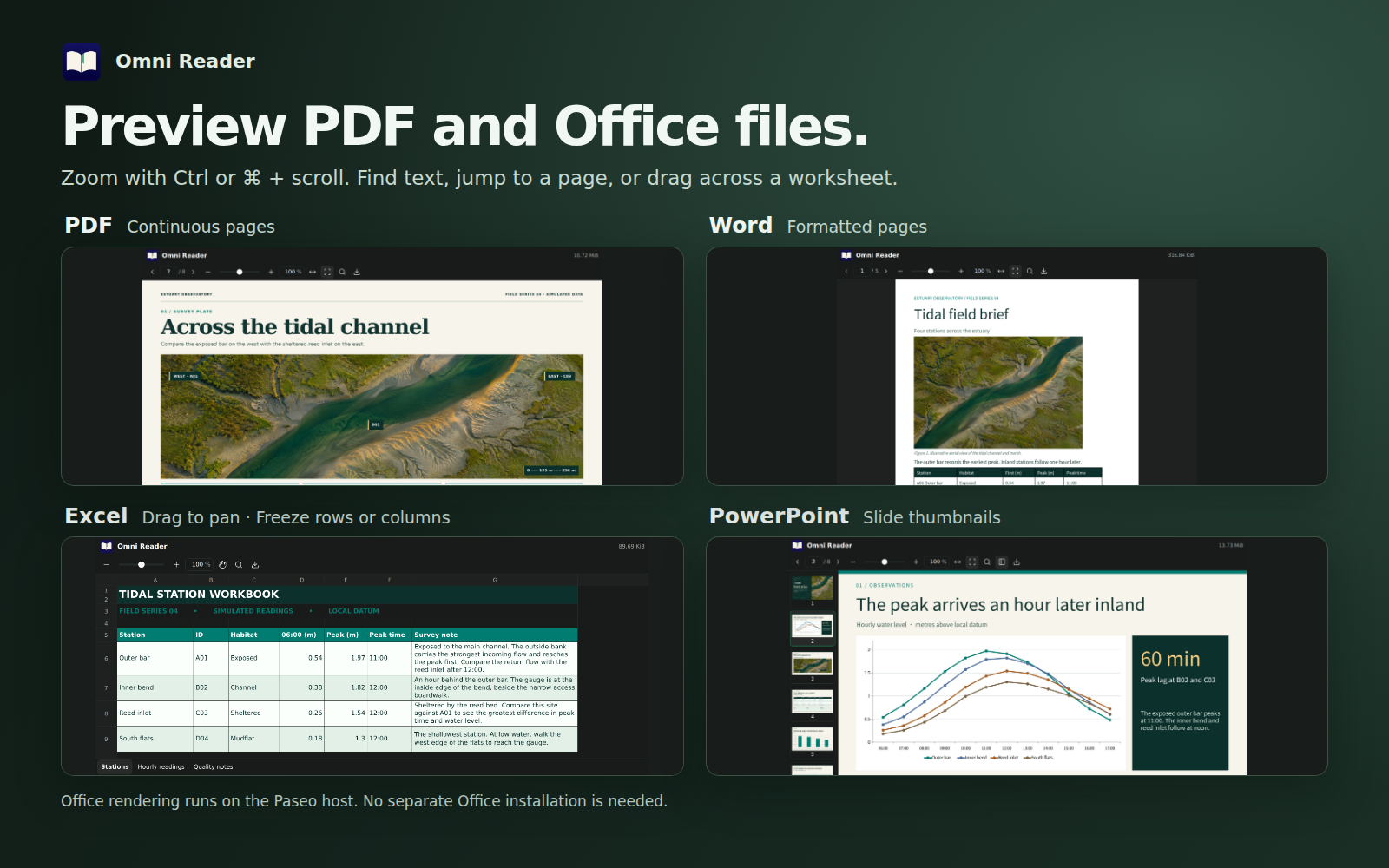
- PDF and Office pages. Scroll through continuously stacked pages, jump to a page or slide, and use the slider or type a zoom percentage. At 100%, each page fits by width or height. Select and copy text directly, or use the floating search bar without changing the page fit. PDF text selection and find require a text layer. PowerPoint opens with a collapsible slide thumbnail sidebar.
- Excel worksheets. Inspect wrapped text and merged cells and switch between sheets. Use the hand tool or the middle mouse button to drag in any direction. Find
A4to match both the address and cell text, or enable Cell address only. Right-click or touch and hold a cell to freeze or unfreeze its row or column independently.
On desktop, hold Ctrl or ⌘ and scroll to zoom PDF, Word, Excel and PowerPoint around the pointer. With the preview focused, press +, -, or 0 to zoom in, zoom out, or reset. Arrow keys pan, and Page Up and Page Down scroll vertically.
On iOS and Android, previews open in Paseo’s file panel. Pinch to zoom and drag with one finger in PDF pages, formatted Office pages, and Excel worksheets. Close the preview with Paseo’s ×.
For workspaces on the local Paseo Desktop daemon, Open externally opens the original in the system’s default app. Browsers and remote desktop workspaces download a copy. On iOS and Android, the action uses the system share sheet. If sharing is unavailable on Android, download the file from Paseo’s file menu. The daemon reads files in the workspace and returns rendered content to the connected Paseo client. The plugin uses no external rendering service.