
Computer Use
Lets coding agents control native macOS apps through typed MCP tools for screenshots, accessibility trees, clicks, typing, and keys.

该插件的概览尚未翻译为你的语言,因此以英文显示。
Computer Use lets your coding agents work in native macOS apps. An agent reads an app's accessibility tree, acts on a named element (click, type, scroll, press a key, set a value), and gets the new state back so it can check the result. The tools are typed. There is no code-execution tool, so agent input is only data for these tools.
A small Swift helper does the macOS work. The plugin compiles it with swiftc the first time it starts and caches it in ~/Library/Caches/paseo-computer-use, so you need macOS 14 or later and the Xcode Command Line Tools.
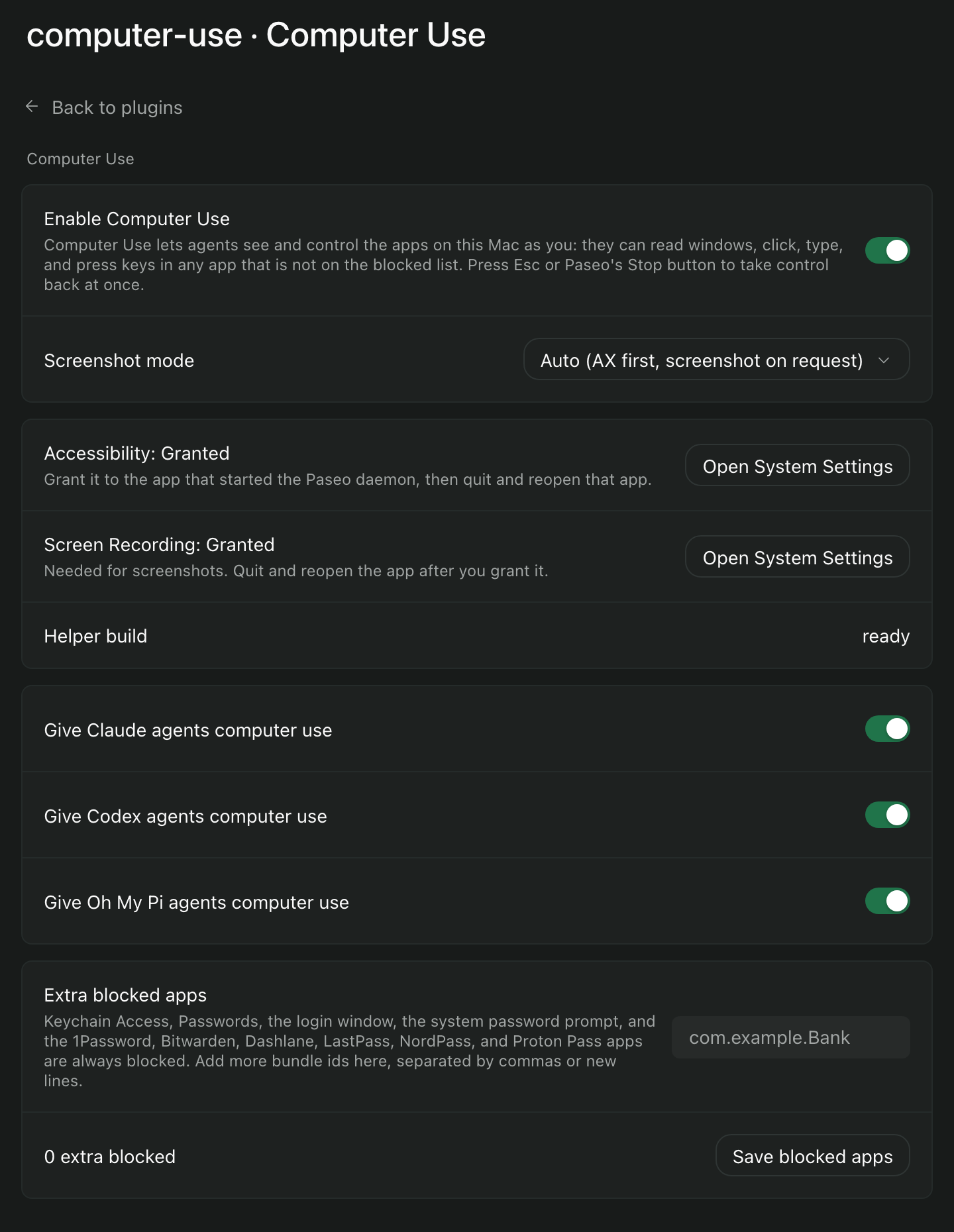
To set it up, open the Computer Use settings screen, read the warning, and turn on Enable Computer Use. It is off by default, and while it is off no agent gets the tools. Grant two macOS permissions to the app that runs the Paseo daemon (Paseo, or the terminal you started the daemon from): Accessibility to read and control apps, and Screen Recording for screenshots. The settings screen shows each permission and opens the matching System Settings pane. After a grant, quit and reopen that app.
The settings screen also has a switch per provider. Claude, Codex, and Oh My Pi are supported. New agents of an enabled provider get the tools; agents that already run do not. Claude runs the read tools without a prompt and asks before each action in a prompting permission mode. Codex and Oh My Pi follow their own permission mode for every tool. In bypass, auto, or full-access modes nothing prompts. Other settings add extra blocked apps by bundle id, choose when results include a screenshot, and allow Computer Use in web browsers.
Computer Use acts as you, so it has these controls:
- One agent controls the computer at a time. Another agent gets a busy error. Control is released when the owner's turn ends, its connection closes, or it is idle for 60 seconds.
- A halo marks the window the agent controls, and a virtual pointer with the agent's name shows each click point. Your own cursor does not move. The overlay is left out of screenshots and screen sharing.
- An agent does not act in an app while you use that app. A key press while that app is in front, or a mouse click or scroll over one of its windows, in the last 3 seconds makes an action there wait: the agent reads the app again and retries. Input to any other app, Paseo included, does not pause it, so you can keep working while the agent works in a background app. Moving the pointer does not count. To know when you last acted, the helper reads macOS's system idle clocks: the seconds since the last key press, mouse button press, and scroll, with no key or content. To tell where a click or scroll went, it keeps, in memory only, the time and screen position of each mouse button press and scroll, the frame and owning process id of each window under the pointer, and the times at which apps came to the front; entries older than 4 seconds are never used and are removed at the next click or scroll or when control ends. It never records key presses or any content. This log runs only while an agent has control: it starts when Computer Use is on and the agent takes control for its first action, and stops, dropping what it holds, when the turn ends, you press Esc or Stop, the connection closes, or the agent is idle for 60 seconds. Turning Computer Use off refuses the next action; control and the log end at the turn end or after 60 seconds idle. A status check or the settings screen never starts it. For the first 3 seconds of control, a click or scroll counts only when the agent's app is in front.
- Press Esc, or shake the mouse, to stop the running action. While an agent has control, the helper watches key presses to catch Esc and pointer movement to detect a shake. It swallows Esc, passes every other event through unchanged, and stores nothing. Paseo's Stop button also cancels it and releases control.
- Keychain Access, Passwords, the login window, the system password prompt, and common password managers (1Password, Bitwarden, Dashlane, LastPass, NordPass, Proton Pass) are always blocked and never read.
- Web browsers (Chrome, Safari, Edge, Arc, Firefox, and others) are left to Paseo's browser tools, which work in Paseo's own browser in the background. Computer Use refuses them unless you turn on Allow Computer Use in web browsers. If a site needs a login, the agent asks you to sign in in Paseo's browser. If Paseo's browser tools are off, the agent asks you to turn them on or to allow web browsers in Computer Use settings.
- Password field values never reach the agent.
- A paste restores your full clipboard afterwards and marks the pasted text as transient. When Telex, VNI, or another input method is active, typing uses a paste, because keystrokes through an input method change the text.
The plugin runs on your Mac and makes no network calls of its own. Tool results do leave your Mac: the accessibility text, typed text, and screenshots that a tool returns go to the agent, and the agent sends them to its model provider. The agent reaches the plugin through a local Unix socket, the helper runs as a local process, and the last 200 tool calls are kept in memory for the settings screen. The plugin writes only these files: the cached helper in ~/Library/Caches/paseo-computer-use, and under ~/.local/state/paseo-computer-use/<key>/ the MCP launcher script in bin/, the socket mcp.sock (falling back to /tmp/paseo-cu-<uid>-<key>.sock when that path is too long for a socket), and client-bindings.json, the map of MCP connections to agents.
Known limits: OpenCode is not tested and not enabled. System Settings is not blocked by default; add com.apple.systempreferences to the extra blocked apps if an agent in a bypass mode must not change it. When the plugin cannot tell which agent owns a connection, Stop on any agent cancels that owner's running action.